Rollouts
Want more info on rollouts?
Reach out to us in #ask-experimenter on Slack.
A rollout is a single-branch Nimbus delivery used to ship a feature configuration to users without running a controlled experiment. Rollouts differ from experiments in several key ways:
- A rollout has only one branch — there is no control group.
- A client can be enrolled in both an experiment and a rollout for the same feature simultaneously.
- When both are active, the experiment takes precedence over the rollout.
- Rollouts use separate bucketing from experiments, so their populations don't collide.
- Rollouts are not measurement tools — there is no comparison branch, no results page, and no data science analysis. You can monitor rollouts via OpMon dashboards, which provide raw data without statistical comparison.
When to use a rollout
- Launching a winning branch of an experiment faster than the trains.
- Launching a configuration to non-experiment users during an experiment after a short period of verification.
- Configuring different settings for a feature for different audiences remotely.
- A "kill switch" if you want to launch a feature but then turn it off if something goes wrong.
When not to use a rollout
Rollouts are designed to deliver feature changes, not to learn from them. If your goal is learning, consider these alternatives:
- Use an experiment instead if you need to measure the causal impact of a change, compare multiple approaches, or gather statistically significant data to make a decision. Experiments give you a control group, results analysis, and data science support — rollouts do not.
- Use Firefox Labs instead if the feature is early-stage, not yet production quality, or you want qualitative feedback from a small group of opt-in early adopters before committing to a broader launch. Labs is designed for incubation — it's okay if the feature is incomplete or buggy.
How rollouts work
Rollout lifecycle
Rollouts have a simpler lifecycle than experiments:
- Draft — Configure the rollout
- Review — Submit for review and approval
- Live (Enrolling) — Clients matching targeting are enrolled
- Complete — Rollout is ended
Unlike experiments, rollouts skip the observation phase. When you end a rollout, it goes directly from Live to Complete. Rollouts also cannot end enrollment independently — the only way to stop a rollout is to end it entirely. (The exception is Firefox Labs rollouts, which support ending enrollment for feature graduation.)
Interaction with experiments
A client can be in both an experiment and a rollout for the same feature at the same time. The client tracks rollout and experiment enrollment separately, so they don't interfere with each other's bucketing.
- The experiment always takes precedence — if a user is in both, they see the experiment's feature configuration while it's active.
- When the experiment ends, the client unenrolls and on the next recipe evaluation will pick up the rollout configuration.
If you run both an experiment and a rollout on the same feature, be aware that experiment users won't see the rollout configuration until the experiment ends. Plan your timelines accordingly.
Mobile messaging exception: On mobile, if both an experiment and rollout target the same messaging feature, the client will actually be enrolled in both and receive the combined configuration. If they target different fields in the JSON, the user gets "experiment + rollout" while both are active, then "rollout only" when the experiment ends.
Pref conflict handling
For rollouts that set Firefox preferences, Experimenter automatically enables the "Prevent enrollment if users have changed any prefs" setting. This is forced for all rollouts and cannot be disabled. It prevents users who have manually changed a pref set by the rollout from being re-enrolled, which would override their manual preference changes.
If you're creating an experiment that also has this setting enabled on the same feature as a live rollout, Experimenter will warn you about potential pref targeting collisions.
Creating a rollout
There are two ways to create a rollout in Experimenter:
Promote from an existing experiment
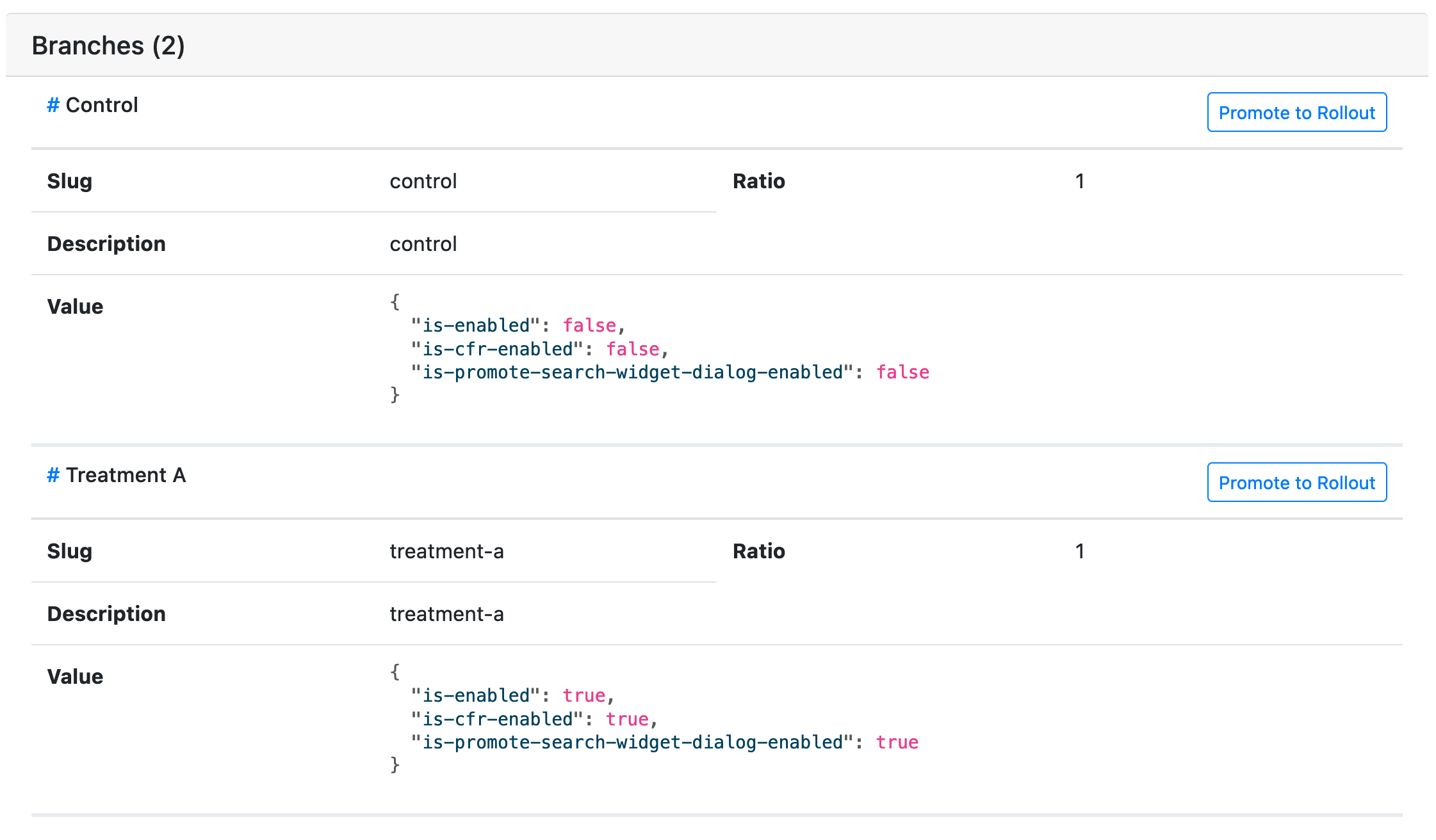
To create a rollout from a "winning branch" of an in-flight experiment, use the Promote to Rollout buttons on the experiment's Summary page. This clones the selected branch into a new rollout, resetting the population percentage to 0% and the duration/enrollment to defaults.
Create manually
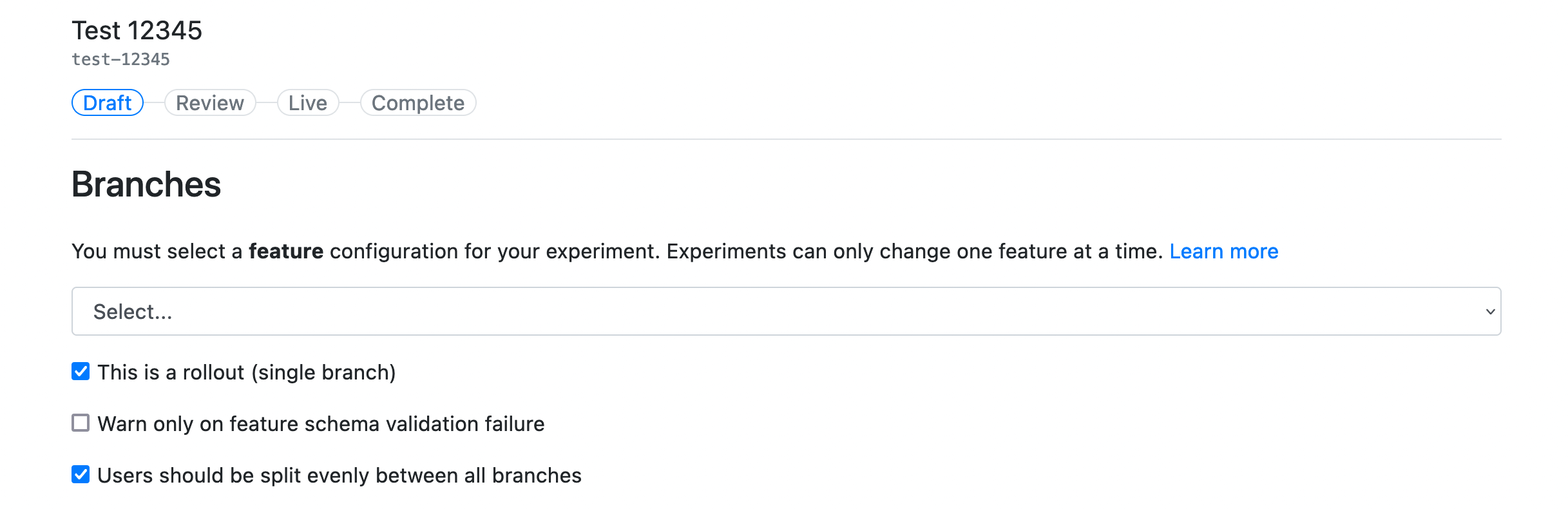
Create a new item through the Create new button on the Experimenter home screen, then check the "This is a rollout" box on the Branches page:
Managing a live rollout
Live editability
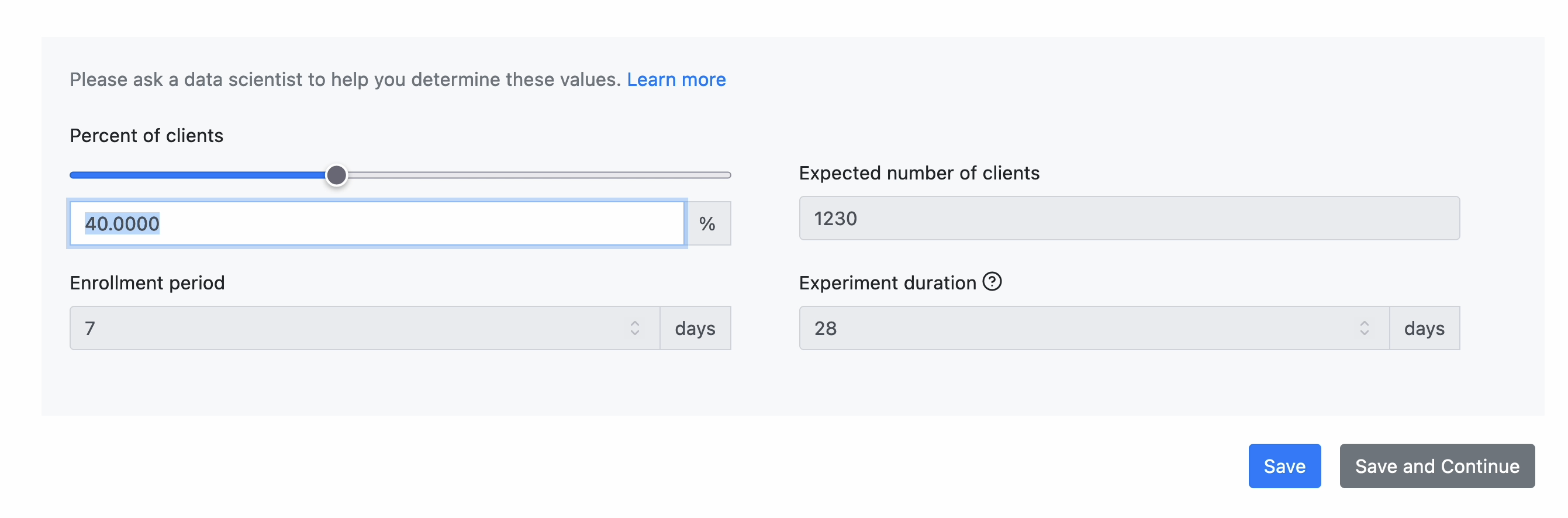
Once a rollout is launched, the only field you can edit is the population percentage ("Percentage of clients" on the Audience page). All other fields are locked.
To change the population percentage:
- Open your rollout and click Audience in the left sidebar.
- Edit the "Percentage of clients" field and save.
Requesting an update
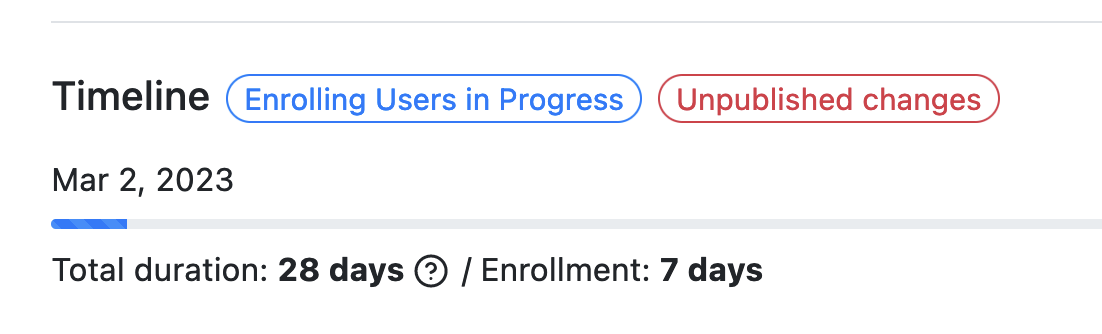
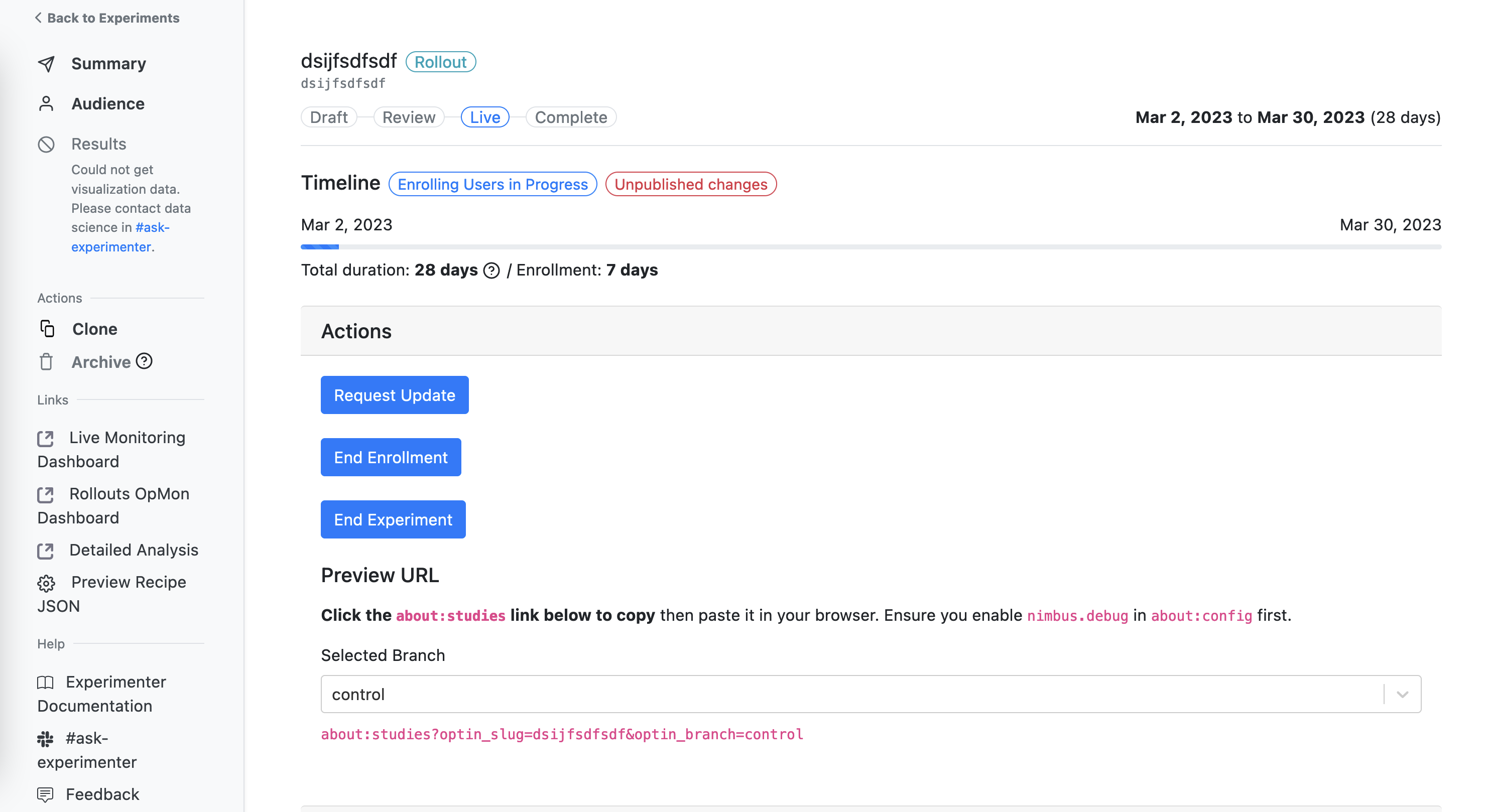
After editing the population percentage, your rollout enters an unpublished changes state (shown by a red "Unpublished changes" badge near the Timeline). You can make multiple edits before requesting review.
When you're ready, click the Request Update button on the Summary page (it's only enabled when there are unpublished changes):
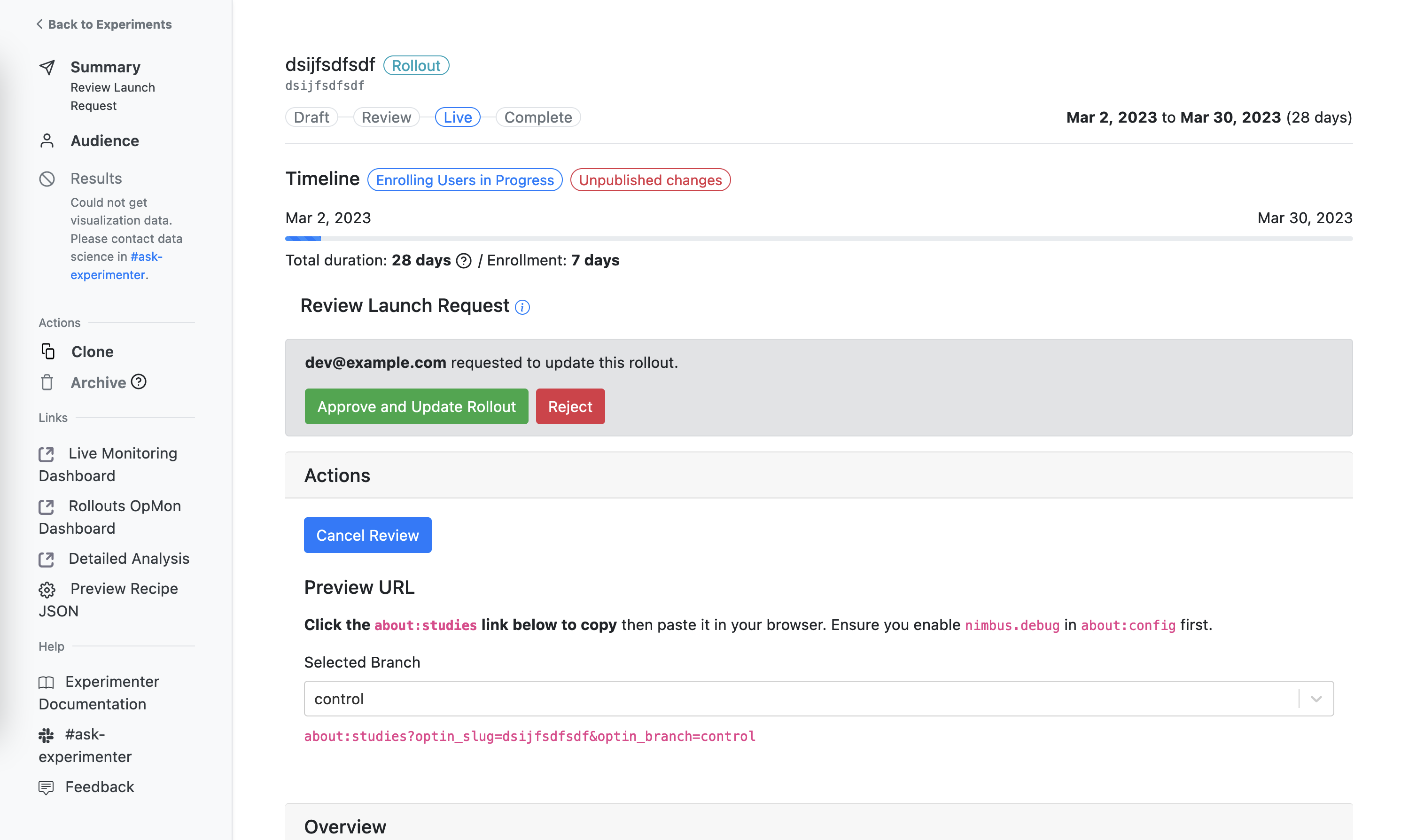
This triggers the same review flow as launching: approval on Experimenter, then approval on Remote Settings.
Staged rollout patterns
This document covers common patterns for people using a rollout to mitigate risk around technical issues, brand perception, and load capacity/service scaling.
See also the Rollouts FAQ for guidance on sizing steps and speed.
Running an experiment and rollout simultaneously
Yes, but remember that only the experiment will produce measurable results — the rollout is just delivering the feature. If you have uncertainty about the effect of the feature, you may wish to be guided by experiment results instead of deploying the feature immediately.
Things to consider first
Once you deploy the feature to someone, you lose the ability to observe what happens when you introduce that feature to that user. Consider whether you have a need for holdbacks.
- Identify the risks you're trying to mitigate and decide whether you need multiple stages.
- If you have multiple stages, how will you know whether to advance or roll back?
- What signals will help you make your decision? Where will they come from?
- If you are relying on the experiment to guide you, make sure the timelines are compatible.
Steps
- Launch the experiment targeting a fixed portion of the population, sized appropriately for whatever you are trying to measure.
- Launch the rollout at a low percentage of the remaining population when you are ready.
- Increment gradually — as the rollout proceeds, consult your decision criteria and adjust the population percentage via live editability.
Keep in mind that if you plan to release the experience to 100% of users, you should make sure it meets production quality standards.
Finding rollouts
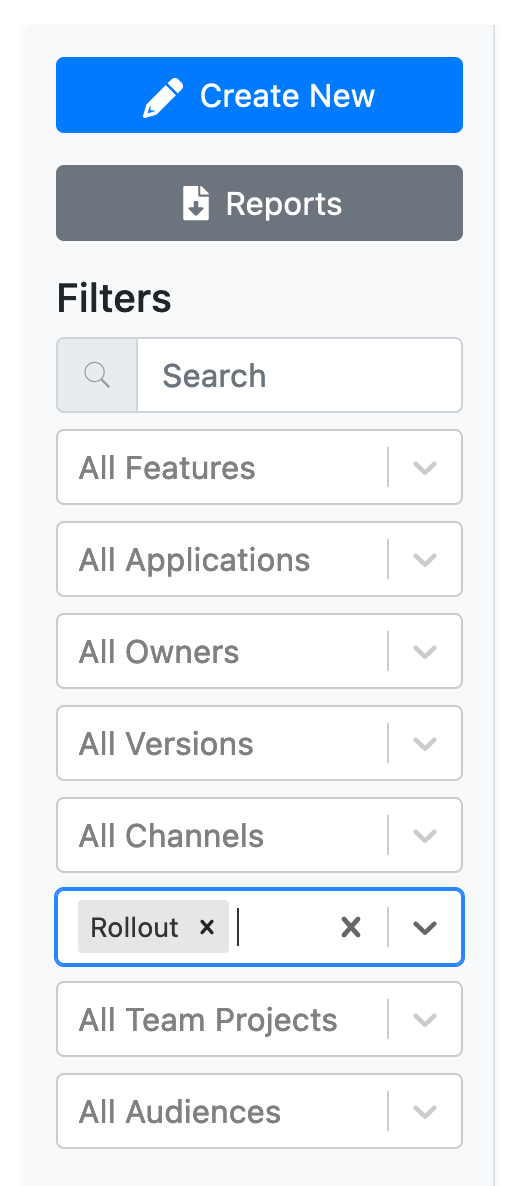
Use the filters on the Experimenter home page. You can sort by feature to see all experiments/rollouts for a given feature, or filter by type to show only "rollout":
Supported platforms and minimum versions
Rollouts are supported on all Nimbus platforms with the following minimum Firefox versions:
| Platform | Minimum Version |
|---|---|
| Desktop | 115 |
| Fenix (Firefox for Android) | 116 |
| Firefox iOS | 116 |
Monitoring
Rollouts do not generate a results page or statistical analysis. Instead, you can monitor rollouts using OpMon (Operational Monitoring) dashboards, which provide raw telemetry data without comparison to a control group.
OpMon dashboards for rollouts follow this URL pattern:
https://mozilla.cloud.looker.com/dashboards/operational_monitoring::<slug_with_underscores>
FAQ
See the Rollouts FAQ for common questions about rollout management, sizing, timing, and interaction with experiments.